





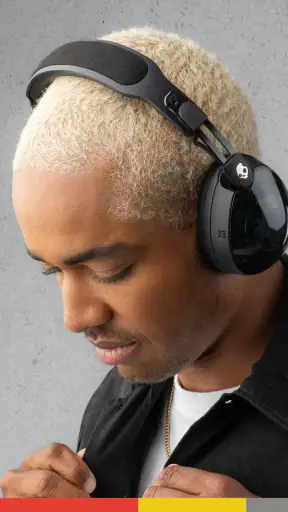
I spent time with Skullcandy as a companion app for Skullcandy headphones and earbuds, and my first impression is that it makes the most sense when you already own compatible hardware from the brand. Rather than trying to be a general music player, it puts the control of that listening equipment in one place. That distinction matters: the app is free to install, but its usefulness depends heavily on whether your Skullcandy device can take advantage of what the app offers.
Developed by Skullcandy Inc., this Music & Audio app is aimed at people who want more control than the basic Bluetooth menu provides. I found it most interesting as a setup and adjustment tool, not as an app I would open simply to browse music. It has reached over five million installs and carries an average rating of 3.5 from around sixteen thousand ratings, which suggests a mixed but substantial user experience rather than universal satisfaction.
What Skullcandy adds to everyday listening
The central appeal is convenience. Once your headphones or earbuds are connected, an app made by the same company can give you a more direct way to manage the listening experience. In practical terms, that means less jumping between the phone’s Bluetooth settings, the audio app you use, and separate device controls. I appreciate that kind of focused workflow because small adjustments are easier when they are gathered in one place.
The store presents it as the full Skullcandy experience, but I would describe it more carefully: it is a control center for the brand’s supported audio products. That makes the app valuable in a very specific situation. If you use Skullcandy equipment regularly, the app can become the place where you check and adjust your setup. If you use headphones from several manufacturers, its role is naturally narrower.
My recommendation is therefore conditional from the start. I would not install it expecting a replacement for Spotify, Apple Music, a podcast player, or a system-wide music library. It belongs beside those apps, not instead of them. Its job is to help your Skullcandy hardware behave the way you want, while the actual listening still happens through your preferred audio service.
Free access, paid value, and what that means
The application itself is free, so there is no upfront download cost to test whether it works well with your equipment. That is the most important value point for a prospective user: you can explore the app without paying simply to install it. The listing also shows in-app purchases ranging from $4.99 to $49.99 per item, so free access should not be confused with every possible part of the experience being free.
I would approach those purchases carefully and judge them only by the specific option shown inside your version of the app. The existence of a purchase range does not automatically mean every user needs to spend money, and it does not make the app a better deal for someone whose headphones already provide everything they need through physical controls. For me, the sensible starting point is to install it, connect the intended device, and see whether the available controls solve a real problem.
That is also why the app’s value cannot be judged like a standalone subscription service. You are not paying for a music catalog here. You are deciding whether a free control layer improves hardware you already own, with optional paid items potentially affecting the overall value depending on what you choose. If you only want to play songs, the phone’s built-in Bluetooth tools and your usual music app may be enough.
A practical setup routine
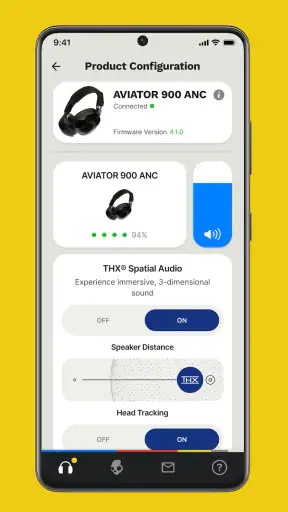
I would use the app in a deliberate order rather than opening it every time I listen. First, I would make sure the headphones or earbuds are charged and connected to the phone. Then I would open the app, confirm that it recognizes the device, and spend a few minutes checking the available controls. This avoids the common mistake of blaming the app when the real issue is that the audio product is connected to another device or has not completed pairing.
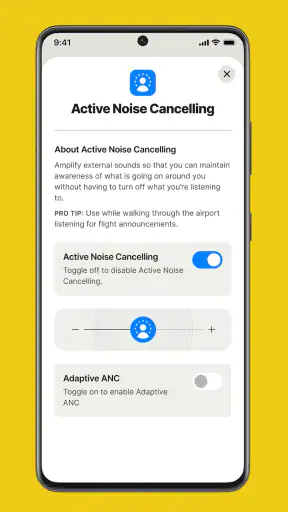
After the initial setup, I would make one change at a time and listen for a while before making another. That is especially useful when adjusting sound preferences. If you change several things at once, it becomes difficult to know which adjustment actually helped. A short test with familiar music is more useful than repeatedly tapping through menus without listening critically.
There is another small but useful habit: treat the app as a maintenance stop, not just an emergency fix. When you have a quiet moment at home, check the device connection and review the controls before leaving for work or a trip. Finding a pairing problem while you are rushing for a bus is much more frustrating than finding it on the sofa with time to reconnect.
Where it fits into a normal day
Imagine using Skullcandy earbuds during a morning commute. You connect them before leaving, open the app briefly, and make sure the earbuds are recognized. Later, you switch from music to a podcast and notice that the sound feels different from what you prefer. Instead of searching through several phone menus, you return to the same control point and make the adjustment there. That is the kind of modest convenience I think the app delivers best.
At home, the benefit can be less obvious. If you rarely change settings and your headphones already sound comfortable, opening a companion app may feel like an unnecessary extra step. In that case, the app can remain installed for occasional device management without becoming part of your daily routine. I would not force myself to use it constantly just because it is available.
For families or shared spaces, the value depends on how many Skullcandy products are involved. Someone who owns one pair may find the experience simple. Someone moving between several audio devices should pay attention to which product is currently connected before changing anything. A control app is helpful only when the user knows which hardware it is controlling.
What I liked about the focused approach
The strongest part of the experience is its clear relationship with the manufacturer’s hardware. A general Bluetooth settings screen tends to expose connection basics, but a dedicated companion application is designed around the needs of that product family. That focus can make the process of checking a device or changing available options feel more organized than relying on the phone alone.
I also like that the app does not pretend to be the place where all audio activity must happen. Its best role is supportive. I can keep using the music, video, and podcast apps I already prefer while turning to the Skullcandy app when the headphones themselves need attention. That separation is healthier than an all-in-one design that tries to replace tools I already understand.
Another advantage is the low-risk entry point. Because the download is free, I can test the app with my own setup before deciding whether it deserves space on my phone. That is particularly useful for people who are uncertain about companion apps. You do not have to commit to a paid plan just to discover whether the controls are relevant to your model.
Trade-offs that affect the experience
The biggest limitation is also the most obvious one: this is not a universal audio controller. Its usefulness is tied to Skullcandy equipment, and the experience will be much less meaningful if your main headphones come from another brand. Even if you enjoy the app’s layout, it cannot turn unrelated hardware into a Skullcandy device.
I also see a potential friction point in having another app involved in a task that Bluetooth can already handle at a basic level. Some users will reasonably ask why they need a companion app when their headphones connect and play sound without one. My answer is simple: install it only if you want the additional control. If basic playback is all you need, the extra layer may not justify the space or attention.
The average rating of 3.5 is worth considering before installation. It is not a reason to reject the app automatically, but it is a reminder to keep expectations realistic. Companion applications can be especially sensitive to device compatibility, connection state, and phone software, so a smooth experience for one owner may not feel identical for another. I would test it with the exact headphones I plan to use rather than judging it in the abstract.
There is also a difference between having access to a control and benefiting from it. An enthusiast who enjoys fine-tuning audio may explore every available option. Another listener may make one adjustment and never touch the app again. The app’s value rises with the amount of control you actually use; unused controls are not a benefit simply because they exist.
Three useful habits beyond the basic installation
First, I recommend creating a simple “before leaving home” check: connect the headphones, confirm the correct device is active, and then close the app. This prevents a common everyday problem in which earbuds remain connected to a tablet, laptop, or another nearby device. It is a small workflow, but it saves more frustration than repeatedly pressing the pairing button after you are already outside.
Second, make notes about the sound adjustment that works for you instead of changing it impulsively from one album to the next. A familiar reference track can reveal whether a change is genuinely better or merely different. This is especially helpful when moving between spoken audio and music, because a setting that feels pleasant for one may not be ideal for the other.
Third, use the app as a troubleshooting checkpoint. When audio behaves strangely, check the connection in the companion app before assuming the headphones are defective. Confirming which product is active and whether the phone is communicating with it can separate a simple connection issue from a hardware problem. That diagnostic step is more useful than immediately deleting and reinstalling every audio app on the phone.
A fourth habit is to avoid changing settings while you are in a noisy or hurried environment. It is difficult to judge sound fairly on a crowded street, and repeated adjustments can leave you with a setup you do not actually like. I get better results when I make changes in a quiet room and then leave them alone for a real-world test.
Who gets the most value
I think the best audience is an existing Skullcandy owner who wants more than simple play and pause controls. If you regularly use the brand’s headphones or earbuds and care about how they are configured, the free app is worth trying. It can give your hardware a more deliberate setup process and make occasional adjustments easier to find.
It is also a reasonable choice for someone buying a Skullcandy product for the first time and wondering whether a companion app is necessary. My advice would be to treat it as optional but useful: start with the headphones themselves, then install the app when you want to explore the available controls. That keeps the decision grounded in your actual listening habits rather than in the promise of having one more application.
On the other hand, I would skip it if you use non-Skullcandy headphones most of the time, dislike manufacturer companion apps, or never change audio settings after pairing. I would also choose a regular music service over this app when my priority is playlists, offline listening, discovery, or a large audio library. Those are different jobs, and Skullcandy is not the right tool for them.
People who want a single neutral app for equipment from multiple brands may prefer relying on their phone’s built-in controls or looking for a platform designed around broader compatibility. The trade-off is that general tools may not offer the same brand-specific relationship with Skullcandy hardware. In my view, the choice comes down to depth for one ecosystem versus simplicity across several.
Compatibility and expectations
The application is listed for devices running Android 9 or later, so owners of older phones should check their operating system before planning around it. That requirement is easy to overlook when the headphones themselves still work with an older handset. A phone may be perfectly capable of basic Bluetooth playback while still being unable to install the companion app.
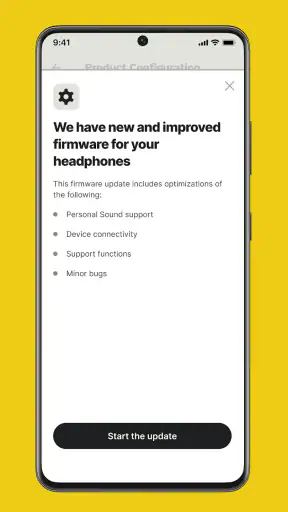
The current version is 5.0.5, and the app has been available since August 31, 2019. I mention those details because they help set expectations: this is an established companion product rather than a brand-new experiment, but an established app can still feel unnecessary if your own use case is simple. I would keep the app updated through the normal store process and retest the connection after major phone changes.
The content rating is Everyone, which fits its role as an audio accessory utility rather than an entertainment service aimed at a particular age group. That does not guarantee that every phone or headphone combination will feel equally smooth, but it does make the app broadly approachable for households where different people use the same brand.
My buy-or-skip verdict
My honest verdict: install it if you own compatible Skullcandy audio hardware and want additional control; skip it if you only need basic Bluetooth playback. The free entry point makes testing straightforward, while the optional in-app purchase range means I would evaluate any paid item separately instead of assuming it is required. The app earns its place when it solves a specific setup or adjustment problem.
I would not call it essential for every Skullcandy listener. Some people will connect their headphones once, use the physical controls, and never need anything else. For them, the phone’s standard Bluetooth panel is the simpler alternative. But if you have ever wished your Skullcandy device were easier to configure, or you want a dedicated place to check the connection before heading out, this app has a clear practical purpose.
Overall, I see Skullcandy as a useful accessory rather than a destination app. It does not replace the music services I use, and it is not meant to. Its value comes from making compatible headphones and earbuds easier to manage. With over five million installs and a mixed 3.5 average, it has clearly found a large audience, but the right question is not whether everyone needs it. The right question is whether your Skullcandy hardware has controls you would genuinely use.
For me, that makes the decision simple: try the free app during a calm setup session, test it with your actual device, and keep it only if it improves the way you listen. That approach respects both sides of the value equation. You get a chance to use the brand-specific controls without an upfront cost, while avoiding the mistake of paying for or maintaining an app that adds nothing to your everyday routine.


